Do I have to know where an app lives on Flathub?
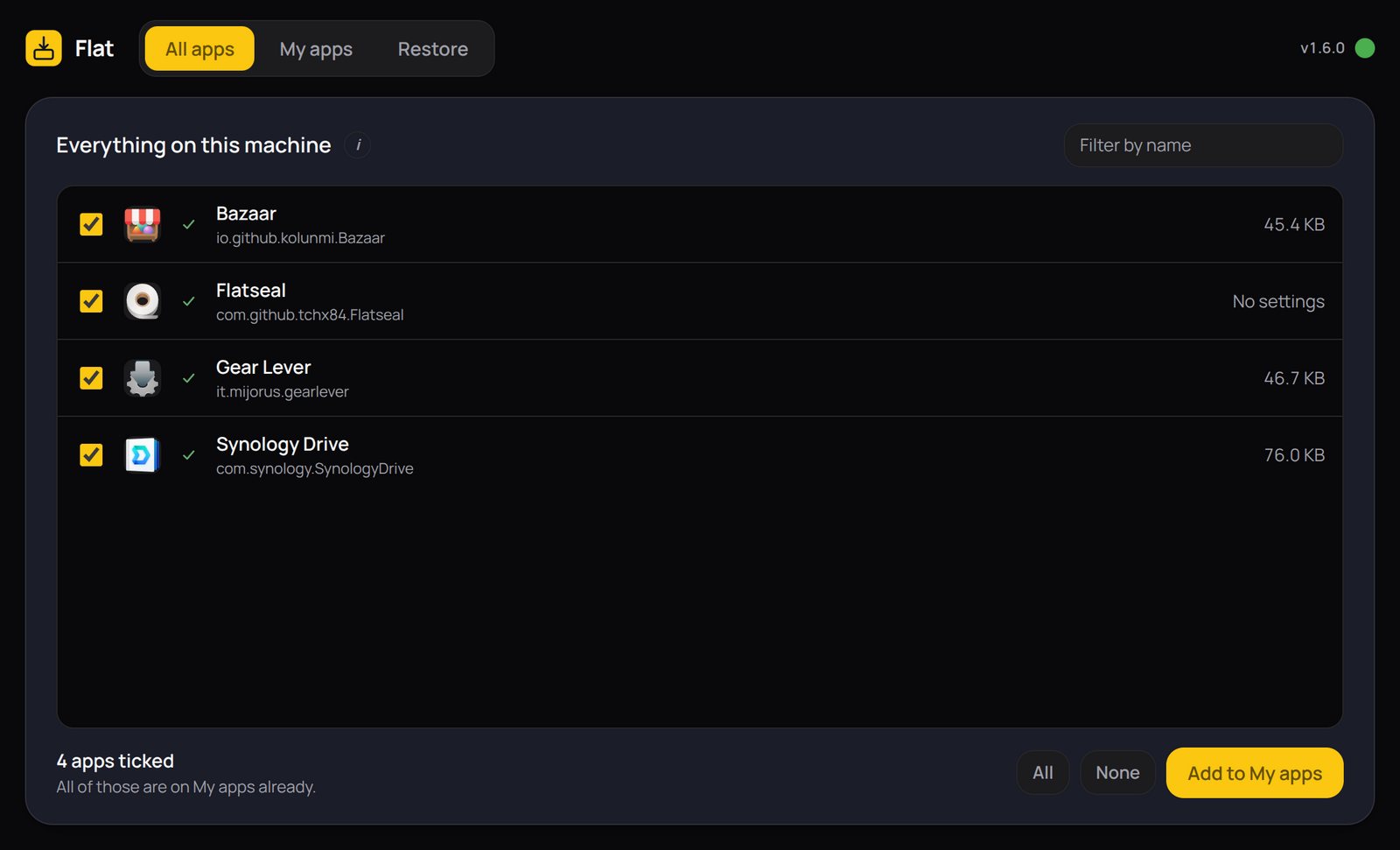
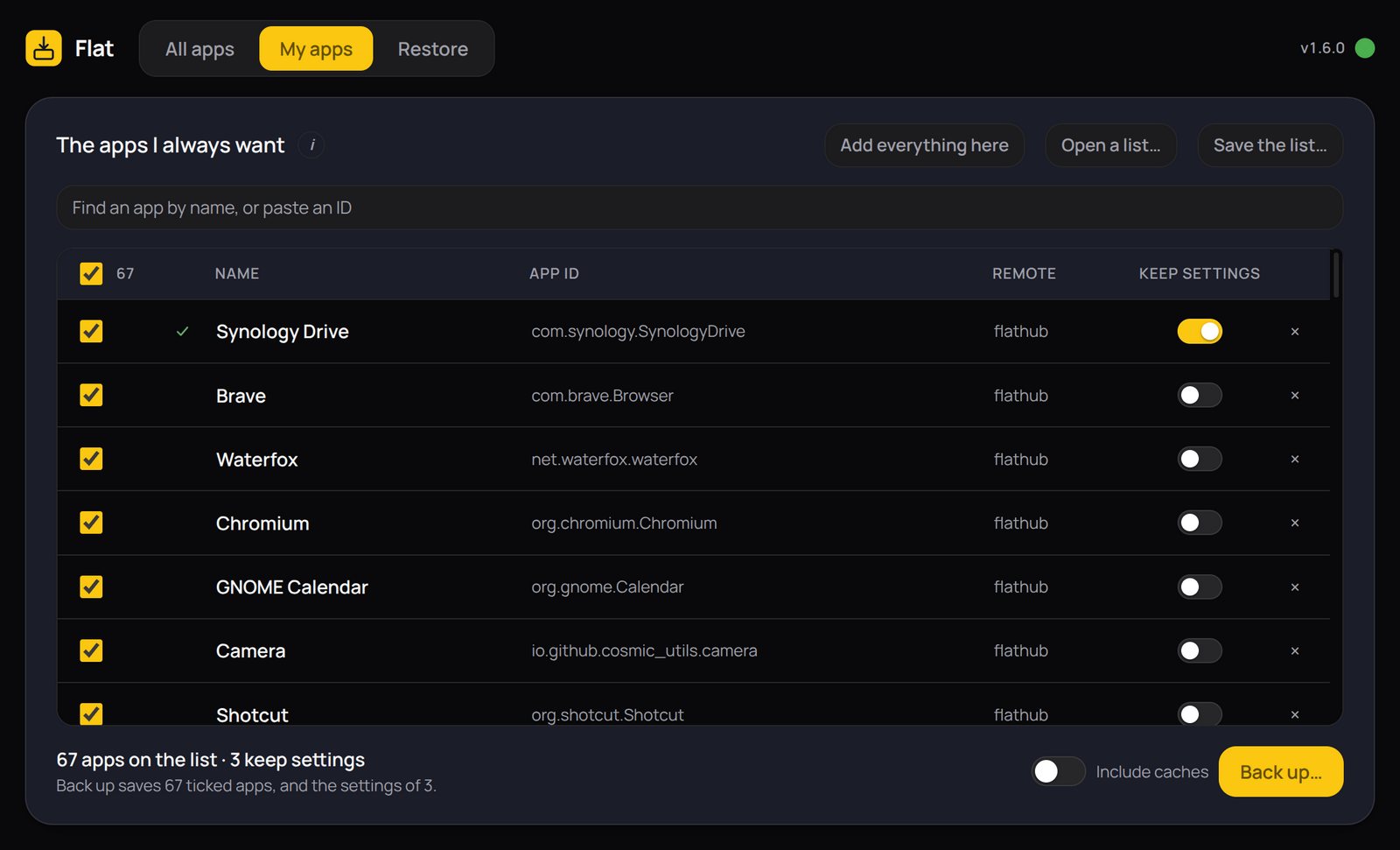
No. You only need its name. The search box on the My apps tab turns a name into the app's ID, the reverse-web-address name such as org.mozilla.firefox, and that is all Flat needs. The remote is Flathub unless you say otherwise.
Will my browser logins come back?
Often, not always. Firefox and Thunderbird keep their logins inside their own profile folder, so those generally come back with everything else. Apps that keep their login in the system keyring, GNOME Keyring or KWallet, keep it outside Flatpak altogether, and those need signing in again on the new machine.
What is in a backup file?
Everything in each ticked app's own folder under ~/.var/app, apart from its cache unless you switch caches on, plus the app's permission settings. For a browser that means bookmarks, history, saved passwords and cookies. The file is not encrypted, so keep it somewhere as safe as the machine it came from.
What happens to an app that is already on the new machine?
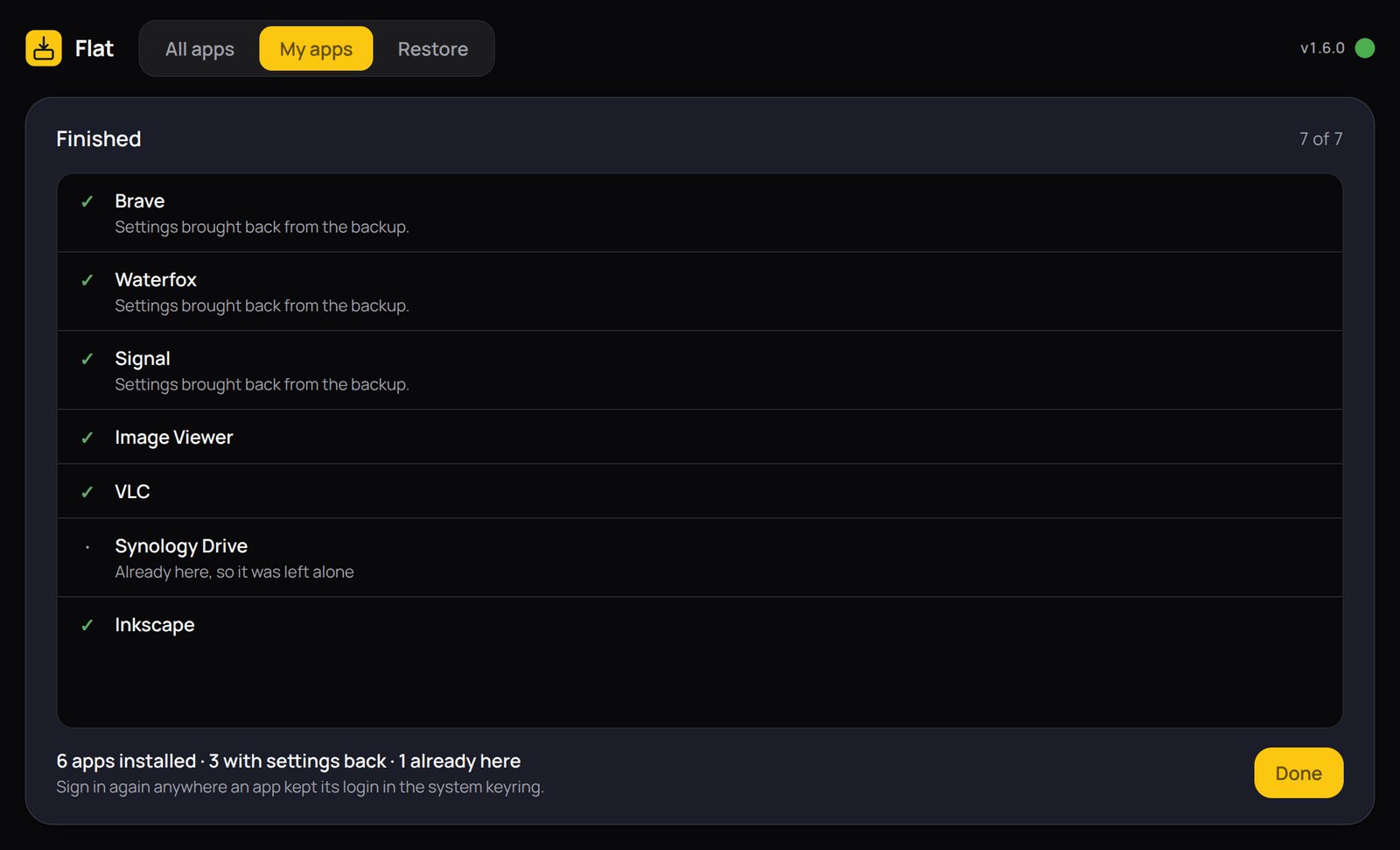
Restore leaves it alone, settings and all: it names it as already there and moves on to the next. Settings are only ever brought back for apps that Restore has just put on, so nothing already set up on a machine is overwritten.
Does it need a password?
No. Everything Flat installs goes in for your own user, not system-wide, which needs no administrator password and works the same way on every distribution.
What about apps that are not Flatpaks?
They are outside what Flat does. Native .deb and .rpm packages, Snaps and AppImages are not moved or installed.
How do I update Flat?
The small dot beside the version number, top right. Green means up to date and a click checks again. Amber means a newer version is ready: click to download it, watch the white ring fill, and click the blue dot to restart into it. Red means GitHub could not be reached. Flat looks when it starts and every half hour after, but nothing is downloaded until you click.